External SSD is my default setup. I encourage it in the office as well. Even my gaming machine is setup at home this way. When popping over a mates I often just plug it out and stick it in to their machine.
It's very useful to be able to seperate data from the hardware. If something is wrong with a machine I can just plug straight in to another one. An SSD is much easier to carry than a laptop.
The other problem with internal hard drives is when they get stuck inside e.g. with MacBooks being sealed these days. External SSDs can offer great flexibility and a trade off worth considering. I can imagine people having security concerns etc.
Disappointing to hear this about the new M1s.
I recommend people interested in dipping their toes into Linux Gaming trying this approach:
When popping over a mates I often just plug it out and stick it in to their machine.
This was one of the touted technical uses for the first (Firewire) iPod. Apple had a notion that people could carry an iPod with them, and then boot any Mac from it and start working right where they left off.[1] This is why Xserves had a Firewire port on the front.
[1] As a point of interest, this used to also exist in the radio industry. Certain brands of control boards had "personality cards" that could be tuned[2] to a particular D.J. Then when the D.J. had to work from another studio, or remotely, he could pop his personality card into the control board and it would be preset to him.
[2] And by "tuned," that meant tuned for his voice[3], to make it sound the way he, or his program director, wanted it to sound.
[3] Even more interesting: Though these were circuit boards, the tuning was done mechanically, and by hand. They were a series of potentiometers covering different frequency ranges.
Oh the glorious offline-first software and hardware. I miss it. Today this would've been handled through "the cloud", requiring an account, a consent to tracking and analytics, a monthly subscription, and a reliable high-speed internet connection.
"Home on iPod" wasn't a full bootable OS X, just the user's Home directory. The feature was also canceled before release, likely due to performance or durability limitations of the iPod's micro hard drive.
What about performance concerns? This sounds unbearably slow, especially for someone accustomed to an NVME SSD. Not sure why you would do that to yourself when cloud backups are an option.
I have been using for several years bootable Thunderbolt 3 SSD's (on Linux).
As those are equivalent with 4 PCIe 3.0 lanes, exactly like the internal M.2 type M SSD slots, there is no performance difference.
Only the latest laptops with Tiger Lake, and the laptops with Ryzen 5xxx to be introduced soon, have PCIe 4.0 M.2 slots, so they will be able to have faster internal SSD's.
I expect that the interconnection standards for external devices will also continue to be improved, restoring parity with the internal devices.
I tried this for a bit and noticed a huge performance drop. Also noticed system freezing.
I have an NVME 2.0TB drive in a USB-C enclosure and while fast as an external this is not fast enough for booting and running the dozen or so apps I keep open on my MBP.
Keep in mind that USB-C != Thunderbolt 3. Yes, the latter also physically connects to a USB-C form port, but it's totally different. It's quite confusing and sad.
USB-C is super slow for this. You need to use Thunderbolt NVME enclosures which can run the NVME at PCIe 3.0 x 4 speed. I have 5 and RAID them together, which handily beats the internal drive for speed by about 2x.
I haven't noticed any performance degradation which is counter intuitive because I really expected there to be one. The Samsung T5 - T7s have been great in my experience. As for the cloud .. well that has it's own challenges too. Currently I'm trying to deGoogle myself and not doing a great job at it.
To address any conventional SSD vs NVMe SSDs performance gap maybe consider and external NVMe SSD!
PCIe costs you less than a microsecond of latency. A good SSD has 60 microseconds of latency. You're not going to notice any difference from moving the controller.
Not so long ago SSDs didn't exists and people were using their PC just fine. Today's high performance portable SSD are miles ahead of the 10000rpm "fast" internal HDDs from back in the days
Software has bloated so much that users having an SSD is an assumption. In fact a 2.5 SATA SSD is almost unbearable on a modern machine for gaming, etc. since M2/NVME showed up.
Kinda yeah, but just to set expectations -- if you want to do an external hard drive as your main drive, just get a thunderbolt drive. You might be able to massage a usable experience out of USB, but thunderbolt is more or less equivalent to an internal drive.
The technical details may differ between if my data is stored on an SSD I'm accessing locally that I booted from, vs if my data is stored in the cloud and I'm accessing it via a web browser, but at the end of the day, I have access to my files. The technical differences have many practical ramifications (eg disk speed), but they are sufficiently practically equivalent for many different use cases. We see this with Chromebooks, where they will never be a full replacement for every windows machine. There is a large reason they've gained marketshare, however.
Not that that means anything for performance. NVMe just means that it uses PCIe.
Since the external port is USB, the internal use of NVMe is actually a downside. The drive actually has two separate circuit boards inside. One of them takes up space and power just to convert NVMe to USB, and wouldn't exist in a better design.
Computers run mostly from RAM and network. Unless you are doing heavy disk work, nvme isn't a big deal. You can use internal disk for temporary projects (compiling, video editing) and then copy the snapshot to external at end of day.
Tell that to my work iMac with a HDD (not my choice) and a new enough OS to require APFS. The only programs I typically have open are Chrome and a music player, and it freezes randomly, and Chrome is constantly waiting on cache.
It's not that bad … for what I'm doing, and I can do something else when the computer stalls. I've thought about an external TBT SSD, but doesn't seem worth it yet.
I dunno man, ssds are pretty basic fare these days. They have been standard for about a decade now. If an employer refuses to give their developers ssds to work off, that's a massive sign of disrespect IMO.
I agree with that! But I'm not a developer. I'm doing hardware repairs, and this machine is to read ticket notes and enter repair info and send emails (and play my music :-).
I've never done this, so my concern might be a total non-issue.
But how do you prevent the external SSD accidentally becoming unplugged when you're doing this with a laptop? And what would actually happen if that did occur?
It would be annoying, so you should better avoid that.
Currently this is the weak point of using external bootable SSD's. Because of that, I prefer the SSD's where the Thunderbolt/USB cable is captive at the SSD end, as then there are less connections that can be unplugged accidentally.
What I would like is to have in the laptop a CFexpress memory card slot.
The CFexpress memory cards have a PCIe electrical interface, but they are mechanically identical with the older Sony XQD cards, i.e. they are solid, rugged, not flimsy like the SDXC memory cards, and they allow a very large number of insertion/extraction cycles.
If the laptops would have such card slots and if SSD's would be available at a reasonable price in this format, then there would not remain any reason to use non-removable SSD's. The current CFexpress specification is based on PCIe 3.0, but future versions can be updated to PCIe 4.0, like the internal M.2 SSD slots of the latest laptops.
Not quite the same, but there's a product being developed to adapt M.2 2242 NVMe drives to Expresscard, the other hotpluggable PCIe standard. Most expresscard implementations are only a since lane of PCIe v2, though some of the new "P" series thinkpads support v3.
Being a single lane limits it compared CFexpress, but it's still a bump over AHCI drives.
Thinkpads up to 2013 also had a tool-less removable disk drive that allows for hot swapping 2.5" SATA drives in seconds while keeping them safe inside. This has been abandoned with the obsolescence of optical drives though.
> The CFexpress memory cards have a PCIe electrical interface, but they are mechanically identical with the older Sony XQD cards, i.e. they are solid, rugged, not flimsy like the SDXC memory cards
I agree, though with SDExpress becoming standard soon there is a much realler possibility of future laptops having pcie microsd slots, which might be good enough if you can find a durable model.
We're well past having card slots on laptops in the Apple realm. Rumor mill suggested possibly getting ports back on a refreshed MacBookPro, but I am not holding my breath.
For those not using Apple laptops, this might be a thing, but I still doubt it's something manufactures will see a lot of demand.
My favorite has been the USB memory sticks that are the same physical size as a bluetooth dongle. Since they are so low profile, the chances of them coming unplugged are pretty damn slim. The only draw back was they are pretty small in capacity for trying to run an OS.
> If the laptops would have such card slots and if SSD's would be available at a reasonable price in this format, then there would not remain any reason to use non-removable SSD's.
A gentle reminder that you live in a world where SSDs on some laptops are not removable at all, as are batteries. And I’m leaving out minutiae like RAM.
I’m just not seeing it as possible, how would you plan the obsolescence of such devices?
If it's easier to take your data drive from one laptop to the next, it's no longer a end user problem when the laptop needs to be thrown away at the end of each season.
Yes, it's a shame you can't charge a 10x markup on the storage the end user takes with them, but you can still charge a 10x markup on the built in storage that's non-removable and whose failure still blocks booting (necessitating replacement of the whole thing, naturally)
Wow, I didnt even know these existed, thanks for mentioning!
Having these CFexpress cards as an option instead or next to an SD card reader on laptops would be great, for compact backups alone. But looking up details and pricing I get a huge DAT vibe: excellent product, limited users makes for expensive media and even less adoption...
I’m using a Samsung t5 via usb c on my MacBook and I’d confidently say it’s impossible to accidentally unplug. Not sure if they made the plug like that on purpose or not but it’s definitely harder to remove than most other usb c plugs. Even after more than a year of use
What I’ve also seen some companies do is simply duct tape the ssd to the laptop lid so they can walk around freely to meeting rooms etc.
Are you using it as an external boot drive or just as additional storage? I’ve seen people use it for storage but the parent comment is the first I’ve heard of potentially using this as it’s own OS..
Perhaps useful for dual-booting between personal and work installations, considering MacBooks are sealed with one drive?
Yeah exactly. I had to get my work MacBook repaired a few times last year and since I’m working from home I just mirrored the internal ssd to the t5 and booted from it on my private Mac.
This way I kept all the company settings and programs working in a way that a time machine restore couldn’t do.
Works just the way you would expect from an internal ssd and switching takes less than two minutes if necessary
My companies MDM software would freak out if I did that. So much of it is tied to the specific serial number of the machine, as well as various baked in management of push notifications for profile updates and the like being tied to the device itself through Apple.
Yeah I could only do that because it’s essentially a BYOD setup. Both MacBooks are mine and there is no company MDM involved. Just some software installed & configured by others that would be quite annoying to restore via time machine
"It's very useful to be able to seperate data from the hardware."
I have been doing this for decades, but I do it with USB sticks, not SSDs, with NetBSD, not Windows. After boot I can pull out the stick, freeing up the USB port for something else.
I would be interested if I coul do the same with Windows but it does not seem as straightforward. I know it is possible but I also know there is a good chance I would never get it to work.
For example, the EasyUEFI link you provided suggests I need to purchase software, the software only runs on Windows, Windows 7 is not truly portable and the authors are not clued in to the idea of separating data from hardware:
"We recommend that you use Hasleo BitLocker Anywhere to encrypt Windows To Go drive to keep your data safe. If you want to upgrade Windows To Go to Windows 10 October 2020 Update (Windows 10 20H2), please go to Windows To Go Upgrader."
If only there was a way I could buy Windows on a stick instead of having to buy a computer with pre-installed.
A "miniroot" is stored in the kernel, indeed the entire OS is loaded into memory. Other BSDs and Linux have used, and may still use, similar approaches in some cases. (For example, BSD install media.) This is old hat but reliable. What is amazing is that you still see people in 2021, when most computers have ample amounts of memory, complaning about "disk" issues, e.g., people try to use SD cards as a "hard drive" for RPis.
The Raspberry Pi foundation wants you to use Visual Studio Code, which means you want to free up RAM. A file system on SD that's mounted read only on boot might be a good call, with /home on an external USB.
It can be done with Linux or any OS that has a RAM-based file system. And with machines coming with gigabytes of memory, the installation supported by a RAM FS can be very complete indeed. See Puppy Linux as an example of a distro that can run from RAM.
On x86, that's the reality. I recently went Intel CPU & AMD GPU to AMD CPU & Nvidia GPU and just booted straight into my old Windows system, no problem at all.
But on anything ARM based? The whole ecosystem doesn't give a fuck. Everything is hyperspecific for one platform exactly. At one point, the Linux kernel had thousands of board source files that specified exactly what hardware your cursed ARM board had. Then they invented device tree but frankly the situation has barely changed, don't expect to ever build a generic ARM image for anything.
You are describing specifically "embedded junk" (which includes the M1, sorry Apple) not literally "anything ARM based". SBSA-compliant platforms boot with UEFI+ACPI, using fully generic DSDT descriptions for PCIe (ECAM) and USB (XHCI). Speaking of GPUs, quite common for them to have QEMU in firmware to run the x86-compiled EFI GOP driver straight from the card's ROM and get video output before the OS.
It's cheaper to use custom ARM boards than it is to build hardware that is SBSA-compliant, so consumers can expect that most, if not all, of their ARM devices are not SBSA-compliant.
I actually started doing this on my TVs. They have usb ports. I bought a 16GB usb stick. And I just did youtub-dl to download a bunch of workouts. And then use roku app on the TV to play them. Saves time, and no youtube ads.
I'd only bother to encrypt work machines -- I don't see why it wouldn't work. My gaming setup -- I'd definitely not bother.
Not every machine is a guaranteed boot. It depends on MBR/GPT etc and whether UEFI is disabled in the BIOS and other configurations. However generally yes, they will. I've even have setups where the SSD would would have macOS/Windows/Linux. Much older motherboard pre-2012 generally don't like this setup and it can be v.slow.
I have enough trouble dual-booting encrypted internal disks on the same machine... any changes to the TPM, or say booting one disk as a virtual machine from within the other disks OS running natively, breaks all AAD and windows hello authentication for me. Have to remove accounts and add them back in from settings on windows 10. So I’d be quite surprised if you’ve figured out a seamless way to boot an encrypted disk on multiple machines...
For example, with bitlocker, won’t you need to enter the recovery key when trying to boot from a new machine? And have to sign out and back in to all relevant OS level accounts? Even then I face authentication issues at times
I really would like this to work seamlessly because moving my internal SSD work disk to an external one would be far safer than lugging it around inside my personal laptop all the time. But the work disk has to be encrypted...
Also, for hardware compatibility’s sake, I’d think Linux would be a far superior daily driver OS to ‘multi-hardware boot’, considering relevant drivers are loaded from kernel on boot rather than selectively pre-installed at OS creation time for that one device, increasing plug and play compatibility
If you cannot have fully encrypted setup, then you can consider encrypting at least most of data.
At work due to remote work I cannot have fully encrypted disc with Windows as I have to reboot remotely. So I left a small enough partition for Windows, then created another partition for my data that I encrypted with strong password in Bitlocker. Then I symlinked my user directory from C:\Users\UserName to a directory on D: and created an extra account that I use after reboot to unlock the encrypted disc with my data.
This is not ideal, as Windows still may store my data on C:\, but if one disables virtual memory, it is a reasonably secure setup.
Yeah for unlocking it within a host OS as a data disk, not for booting from it... you can set auto unlock at boot or a pin to boot, both of which use the TPM
But try move a bootable bitlocker encrypted disk to new hardware and you’ll have to enter the recovery key
I would really like to be wrong about this since it would make my life much easier, but this understanding is based on experience using multiple work machines with encrypted boot drives every day :(
Ya, I ran for a long time with a passphrase in a system without a TPM. I recently got a TPM for it so I could have it restart without me being present.
I used the `manage-bde` command rather than powershell:
The GUI for bitlocker doesn't provide access to all the functionality that manage-bde provides (iirc: if a TPM is present, the passphrase options aren't presented in the GUI. And it used to talk about a "PIN" instead of a passphrase/password, but the "PIN" can (with some gpo tweaking) contain letters/space/punct as well as numbers.
Oh wow, thank you! Should’ve known to head straight to the docs instead of searching phrases online. Now to spend the next day backing everything up and configuring passphrase on boot...
A couple of years ago I used to run a qemu Linux-host/Windows-guest with PCI pass-through for GPU/SSD/etc.
I could either boot the Windows install directly from the SSD, or I could boot Linux and then run the same install in qemu, without issue.
I think there used to be more problems if you changed the hardware too much from the original install. Like, if you changed your motherboard (which the above would do of course), then you couldn't run the same install. But I don't think that's as much of a problem anymore?
This was of course not an external SSD, so I don't know how that changes things, if at all.
Cool! I used to run a similar setup, when I started out I passed through the hardware. But when things were running smoothly I never booted back into windows natively (Wasn't planning on this use-case).
Nice to hear that it is possible. I feel like MS essentially gave everyone the wrong idea about OSes dealing with hardware changes.
Folks doing this need to be careful not to plug their disk into a machine with a different OS.
If the disk is plugged into an already booted system and the OS doesn't recognize the filesystem format, I believe macOS and Windows display a prompt to format the disk, which someone may accidentally click.
I would love to do that; but Windows (yes yes I know:) seems to intentionally block normal installation to external SSDs; and all the workarounds I've tried so far have removed all the convenience factors :|
I would have expected that as well but found in general the process to be pretty seamless.
I should probably mention I just stumbled on to this approach rather than having forged it through clever thinking -- it was originally due to a faulty motherboard burning out internal HDDs consitently. So I HAD to opt for an external drive and once I did the going back made little sense as it just imposed restrictions I didn't want anymore.
Between Macs with macOS, this usually works fine (except with older hardware that is not supported by the OS on the external drive). Can't say for Windows.
This might be the case for Windows, but with Linux, most drivers are already distributed with the kernel and can be dynamically loaded and unloaded depending on what hardware is discovered while booting or afterwards.
I've been using external disk as my main macOS too and the only downside is the worry cable would snap out which it did a few times when I moved laptop around and crashed everything. Other than that, great way to upgrade my MBP with 1TB disk without needing to buy new MBP.
It works nicely if you don’t use commercial apps that uses device identifiers for activation.
For such scenarios common by media creators external disks fail to “just” plug.
Some apps uses dongles or allow activating to usb sticks. But still it’s the exception.
One of the major advantages of the M1 hardware is that the storage controller for the SSD is directly integrated into the CPU. You would be losing a big part of that performance advantage by using an external OS volume.
That isn't true. There wouldn't be a performance advantage to that at all (the limiting factors in storage performance have nothing to do with motherboard trace length, which has a negligible impact on performance in general), and the M1 Macs have fairly ordinary SSD performance.
I agree with your reasoning, especially since external SSD have made it safer to carry physically as opposed to external HDD.
But I mirror my internal NVMe SSD to external SSD as the performance benefits of the former matters for me most of the time and when needed bootable external SSD is available at disposal.
On macOS(not M1), Carbon Copy Cloner could create bootable clones of the disks. But I'm out of macOS for good as changes in Big Sur was too much for me, No offense to those who like it; but it seemed like a unicorn poop for me. Mojave was the last version which preserved the essence of macOS IMHO.
Now I'm back to Linux, hopefully btrfs(snapshots) + Timeshift should recreate the same workflow.
Load a Windows 10 ISO and click Windows to Go, wait a couple minutes. Full Windows on a USB and it’ll automatically rediscover hardware if you move it to a new PC.
Look up WinPE. It's a lightweight "live CD/USB" version of Windows that can be run entirely in RAM. A full "portable Windows" install can be made from it. AFAIK all the third-party tools do is automate the process of copying thousands of system files and also act as a boot manager.


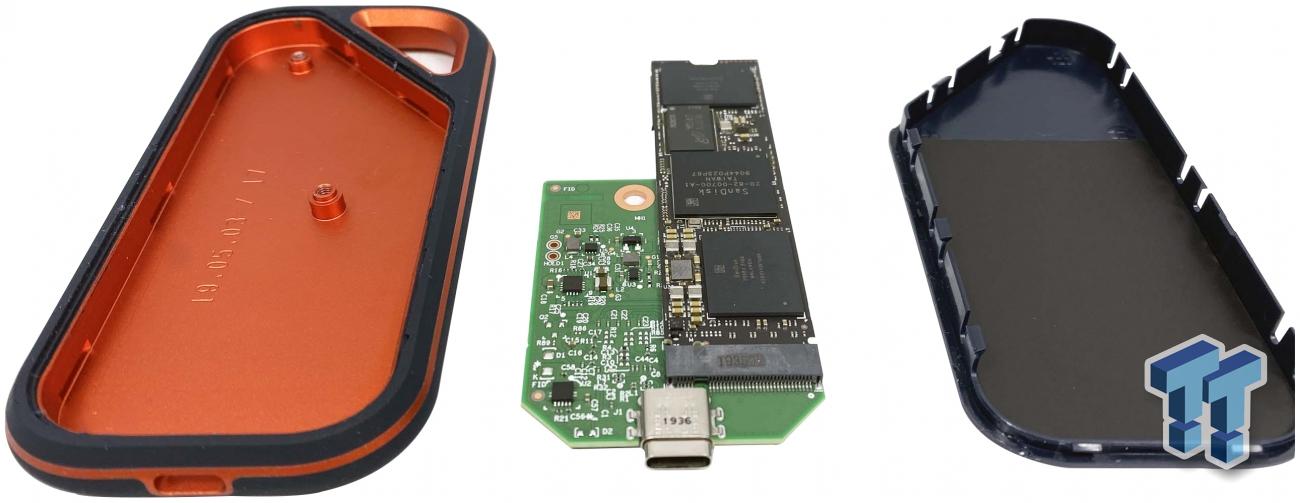
It's very useful to be able to seperate data from the hardware. If something is wrong with a machine I can just plug straight in to another one. An SSD is much easier to carry than a laptop.
The other problem with internal hard drives is when they get stuck inside e.g. with MacBooks being sealed these days. External SSDs can offer great flexibility and a trade off worth considering. I can imagine people having security concerns etc.
Disappointing to hear this about the new M1s.
I recommend people interested in dipping their toes into Linux Gaming trying this approach:
https://www.easyuefi.com/wintousb/
https://rufus.ie/